
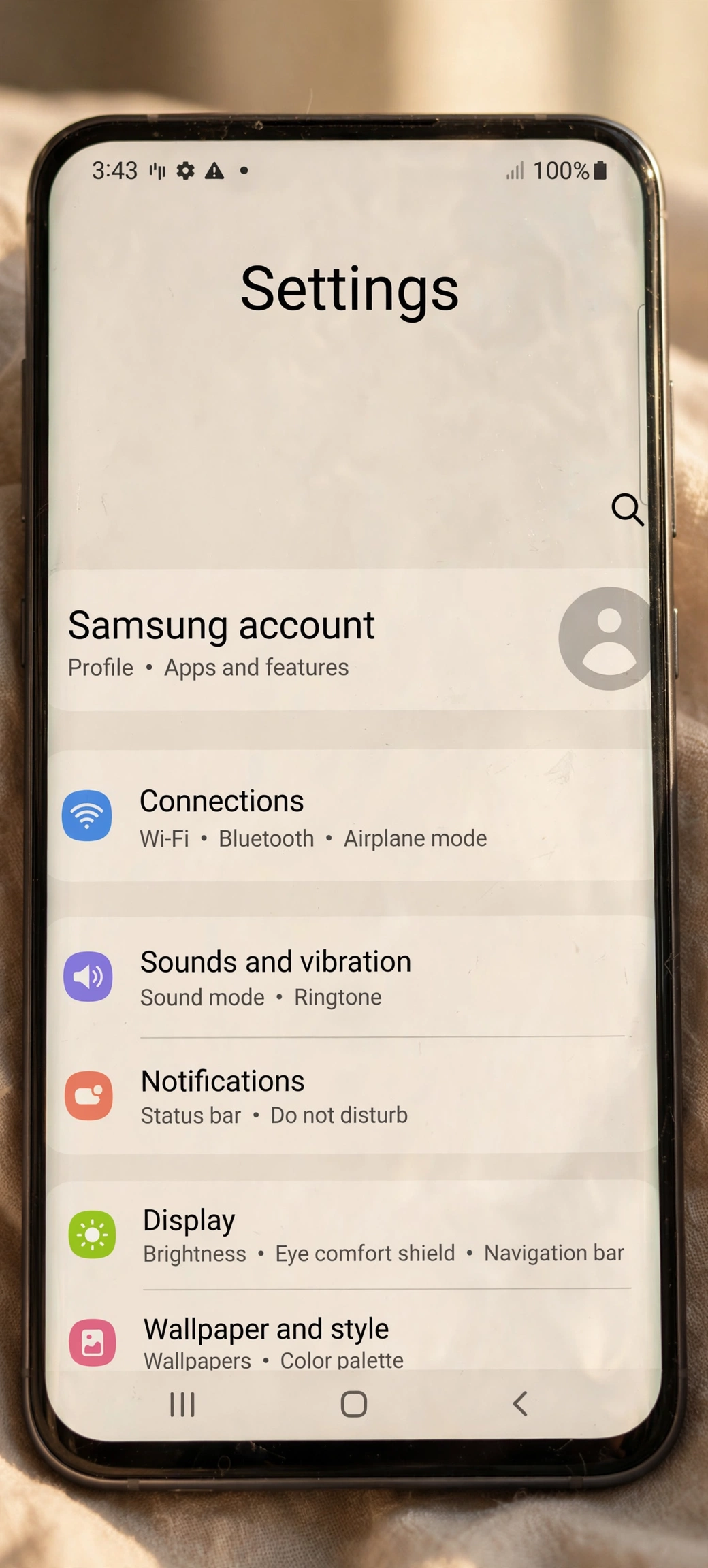
Samsung’s One UI ships with the volume turned up on everything: extra gestures, extra panels, extra data collection. These are the twelve settings worth switching off on day one, with the exact menu paths to find them.
PetaTech24 Technology Desk | October 16, 2026
Every new Samsung Galaxy phone arrives with One UI set to maximum enthusiasm. Features you will never use run in the background, gestures you never asked for trigger by accident, and data collection you never agreed to quietly phones home.
Android Authority’s Joe Maring keeps a personal hit list: six features he disables on every new Samsung phone, starting with the Samsung Keyboard. His list is a strong starting point, but it is not the whole story.
This guide builds the complete checklist: the six interface fixes from Maring’s list, plus the privacy and battery settings flagged by other specialist outlets. Every path was verified against published guides, and where One UI versions disagree on a menu location, we say so.
In Brief
- Six interface settings form the core clean-up, per Android Authority: the Samsung Keyboard, the split notification panel, Edge panels, Samsung Wallet swipe gestures, lock screen notification style, and the palm-swipe screenshot gesture.
- Six more privacy and battery settings are worth disabling: Customization Service, Nearby device scanning, ad personalization toggles, diagnostic data sharing, RAM Plus, and full animation scales.
- Every change below is a reversible toggle in the stock Settings app. Nothing here needs root, ADB, or a computer.
- Menu paths shift slightly between One UI 7, 8, and 9. When in doubt, use the search bar at the top of Settings.
Why This Matters
Defaults are choices made for Samsung, not for you. The split notification panel exists to look different from stock Android. The Wallet gesture exists to put Samsung’s payment product in front of you. Customization Service exists to feed ad personalization. None of them exist because you asked.
The cost is not just annoyance. Background scanning and data collection nibble at standby battery, and aggressive defaults like tiny lock screen icons make you miss messages. A twenty-minute settings pass on day one pays off for the entire time you own the phone.
The Interface Clean-Up
Ditch the Samsung Keyboard
Maring is blunt about Samsung Keyboard, and he is not alone in that verdict. The autocorrect lags, voice typing stumbles, and the layout wastes space. Google’s Gboard is free on the Play Store and better at all three.
Install Gboard, open it, tap Enable in settings, toggle it on, then set it as the default keyboard. Samsung Keyboard stays installed but silent.
Merge the notification panel
Since One UI 7, swiping from the top-left shows notifications while the top-right shows Quick Settings: two gestures where one used to do. Open Quick Settings, tap the pencil icon, choose Panel settings, then Together. One swipe now shows toggles above notifications, like every other Android phone.
Kill Edge panels and Wallet gestures
Edge panels put an app shortcut drawer on the screen edge. If you use it daily, keep it; everyone else should open Settings, tap Display, and toggle Edge panels off.
Samsung Wallet adds a swipe-up shortcut on the home screen, the lock screen, and even with the screen off. If you do not use Wallet, open the app, tap the three dots, go to Settings, then Quick access, and turn the gestures off.
Fix lock screen notifications
One UI 7 shrank lock screen notifications to tiny icons in the corner. Go to Settings, then Notifications, then Lock screen, and switch from Icons to Cards. Full notification banners return to the center of the screen, and you stop missing texts at a glance.
Stop accidental screenshots
Palm swipe to capture sounds clever until you wipe dust off your display and capture a screenshot instead. It lives under Settings, then Advanced features, then Motions and gestures. Turn it off. The volume-down-plus-power combination still works whenever you actually want a screenshot.
The Privacy and Battery Layer
Customization Service is Samsung’s personalization engine: it studies how you use the phone to tailor ads and content. GadgetHacks calls disabling it the single highest-priority change, and SammyFans notes it quietly drains standby battery. The path moves between One UI versions, so type “Customization Service” into the Settings search bar instead of hunting through menus.
Nearby device scanning keeps Bluetooth and Wi-Fi polling for accessories you do not own. Unless you are pairing Galaxy Buds or a watch, turn it off under Settings, Connections, then More connection settings.
Two more data taps live under Security and privacy, then More privacy settings. In the Ads section, turn off Ad topics, App-suggested ads, and Ad measurement, per Android Police. Then disable diagnostic data sharing, which How-To Geek’s Cory Gunther flags as an optional background upload worth turning off for battery life.
RAM Plus reserves storage as virtual memory. On phones with 8GB of RAM or more, XDA’s testing suggests you will rarely miss it, and switching it off under Settings, Device care, then Memory hands that storage back. The phone needs a restart to apply the change.
Finally, animation scales. One UI’s animations are polished, but each adds a beat to every interaction. Enable Developer options by tapping Build number seven times, then set the three animation scales to 0.5x, or 0x for maximum snap. This is the one change you feel instantly.
A Note of Caution
Everything here is a standard toggle inside Samsung’s Settings app: nothing voids a warranty, nothing needs a computer, and every change reverses with one tap. One warning: major One UI upgrades occasionally reset a toggle or two, so recheck this list after big updates. And if a menu path does not match your phone, search the setting’s name in Settings rather than digging through menus.
Quick Answers
Will turning these settings off void my warranty?
No. Every setting in this guide is a standard toggle inside Samsung’s Settings app. Nothing requires root, ADB, or any modification Samsung could object to, and each change reverses with a single tap.
Will disabling background app limits hurt my battery life?
It can slightly increase standby drain, since more apps stay active. The tradeoff, flagged by Android Police, is notifications that arrive on time. You can also exempt only specific apps under Battery, then Background usage limits.
Do I have to redo all of this after a One UI update?
Usually not, but major version upgrades sometimes reset individual toggles. Recheck the list after big updates.
Does turning off Edge panels or Wallet gestures break anything?
No. The features simply stop appearing, and you can re-enable either one any time.
Is Gboard safe to use instead of Samsung Keyboard?
Gboard is Google’s keyboard from the Play Store, covered by the standard Play Store privacy policy. You are trading Samsung’s data handling for Google’s; any reputable third-party keyboard installs the same way.
Final Word
Samsung’s defaults serve Samsung. Twenty minutes with this checklist serves you: a calmer home screen, notifications you can actually read, and less of your data quietly leaving the phone.
Start with the six interface fixes, because those change how the phone feels every single day. Then do the privacy layer, because those change what the phone says about you.
And when the next big One UI update lands, run the list once more. Defaults have a way of creeping back.
Sources / Attribution
- Android Authority (Joe Maring), Just get a new Samsung phone? Turn off these 6 features ASAP, 2026. The six core interface settings and their menu paths.
- Samsung GadgetHacks, New Samsung Phone Settings to Turn Off: 6 One UI Changes, 2026. Customization Service, Nearby device scanning, Samsung News panel, panel and lock screen adjustments.
- Android Police, 6 Samsung Galaxy features you should disable immediately. Ad privacy toggles, background app sleep settings, Edge panels.
- XDA Developers, 4 One UI features I turned off to make my Galaxy device feel faster, 2026. RAM Plus path and animation scales in Developer options.
- How-To Geek (Cory Gunther, via 247 News Agency), 2026. Diagnostic data and personalization-sharing toggles for battery life.
- SammyFans, 5 One UI 9 Settings to change on your Galaxy Z Fold 8, 2026. Customization Service battery impact and alternate menu path.


